How to Set Up a Digital Planner in GoodNotes (Step by Step)
A digital planner is a PDF with built-in links: tap a month tab and you jump to that month, tap a date and you land on that day's page. You write on it with an Apple Pencil (or any stylus) inside a note-taking app. Here's how to set one up in GoodNotes, with notes for Notability users.
What you need
- An iPad (or an Android tablet with a PDF app that supports hyperlinks)
- A stylus such as an Apple Pencil (a finger works, but it's not as nice)
- GoodNotes, Notability or another PDF annotation app
- Your planner PDF
Step 1: Download the PDF to your iPad
Open your order page in Safari on the iPad, tap the download button, then open the Downloads list and tap the file. If you bought on a computer, email it to yourself or save it to iCloud Drive, Google Drive or Dropbox so it's available on your iPad. Keep an untouched copy in the Files app as your master backup.
Step 2: Import into GoodNotes
With the PDF open, tap the share icon and choose GoodNotes (or "Open in GoodNotes"). Alternatively, in GoodNotes, tap the + / New button, choose Import, and pick the PDF from Files. GoodNotes creates a new notebook from it. In Notability, use the Import option and select the file.
Step 3: Learn how the links work
Tap a tab or a date with your finger. If tapping draws a mark instead of jumping, switch to GoodNotes' read-only mode in the toolbar and tap again, or check your app's settings for how links behave with the pen tool. Once you're on the right page, switch back to the pen and write.
Step 4: Set up your year
- Year and goals pages first. Fill in your big-picture goals and key dates; it's the page you'll come back to most.
- Monthly calendars. Add birthdays, bills and holidays for the whole year in one sitting.
- Weekly and daily pages. Use them as you go. You don't need to fill every day; a digital planner never runs out of paper.
Step 5: Make it yours
- Digital stickers: PNG stickers can be dragged in with the image tool, and GoodNotes' Elements feature lets you save favorites.
- Highlighters and colors: pick three or four colors (work, family, health, money) and stick to them.
- Extra notes pages: duplicate a blank notes page whenever you need more room.
Step 6: Back it up
Turn on iCloud sync or automatic backup in your app's settings. Every month or so, export the notebook as a PDF and save it to Files. If something goes wrong, you'll lose a few weeks at most, not your whole year.
Troubleshooting
- Links don't work: make sure you imported the PDF as a new notebook rather than inserting pages as images, and try read-only mode.
- The planner looks blurry: zoom in fully; the PDF is vector, so blurriness means the app is still rendering.
- App feels slow: very large planners can lag on older iPads. Close other apps, or keep only the current year's notebook open.
Our 2027 digital planner
Sunny Days is a landscape 2027 planner for GoodNotes, Notability and other PDF apps with 479 hyperlinked pages, including 365 dated daily pages, weekly spreads, monthly calendars and habit trackers, in Monday-start and Sunday-start versions.
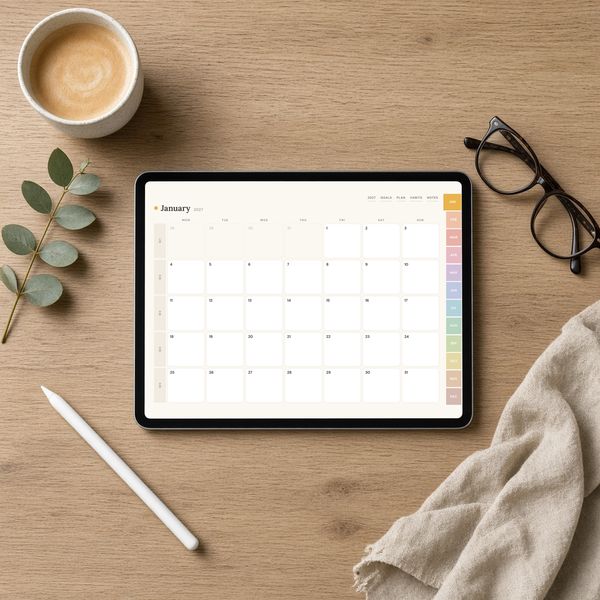 Sunny Days 2027 Digital Planner for GoodNotes & Notability$18.99 · Instant downloadView the printable →
Frequently asked questions
Do digital planners work with Notability?
Yes. Any hyperlinked PDF planner works in Notability and most PDF annotation apps. Import the PDF as a new note and tap the tabs to navigate.
Why don't the links work in my digital planner?
In many apps the pen tool intercepts taps. Switch to read-only mode or a navigation tool, then tap the tab again. Also make sure the PDF was imported as a document, not as images.
Can I use a digital planner on an Android tablet?
Yes, with a PDF app that supports hyperlinks and handwriting, such as Samsung Notes or Xodo.